
Sending an IM
You can send an interoffice IM to a coworker App to App.
|
From the Contacts tab |
Right-click on the contact and choose Send Instant Message. The contact must have a softphone address.
|
|
An active phone call |
If the person is a contact, choose Send Instant Message from the call panel menu. |
|
An active conference call |
If the participant is a contact, choose Send Instant Message from the participant menu. |
|
From the Messages window |
Click the New Conversation icon beside the Search field, and type a number or name. |
Type the message. Include emoticons and formatting (Ctrl+B, Ctrl+I, Ctrl+U), as desired.
Click the Send Icon.
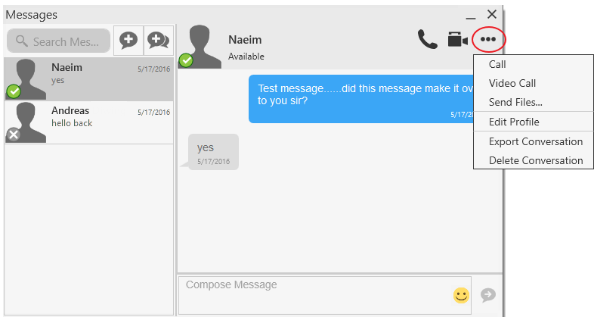
You can click on the More Icon (three dots) for additional options regarding this IM contact.
Receiving an IM
When an IM is received, either the Messages window or a Call Alert pops up. (To control which window appears, choose Softphone > Preferences > Alerts & Sounds.)