Hardware requirements:
|
Processor |
Minimum: Core 2 Duo 2.1 GHzRecommended: i5 / i7 2.4 GHz and above |
|
Memory |
Minimum: 4GB RAMRecommended: 16 GB RAM and above |
|
Hard Disk Space |
400 MB (Install/Upgrade, 200 MB operation) |
|
Operating system |
Microsoft Windows 10 |
|
Connection |
IP network connection (broadband, LAN, wireless); Constant Internet connection |
|
Sound Card |
Full-duplex, 16-bit or use USB headset |
Installation:
Click on the download link provided to you in the UniVoIP App welcome email.
If you see the file in the lower left corner of your browser window, click on it to start the installation. Otherwise you can locate the file in your Downloads Folder.
Click on it to start the installation.
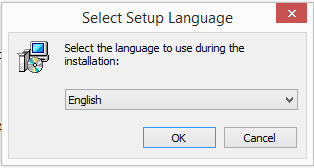
Next, select your Setup Language and press "OK".
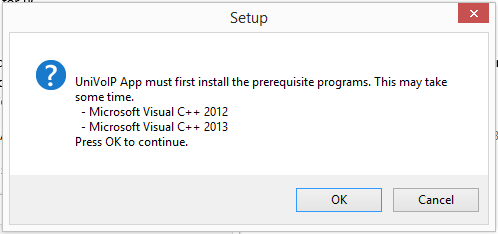
If the window above appears, click "OK".
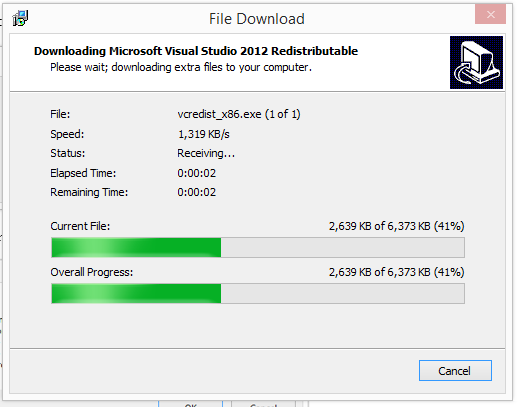
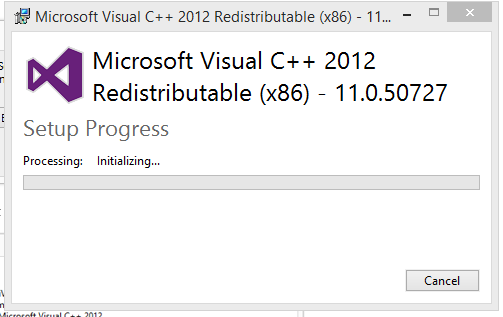
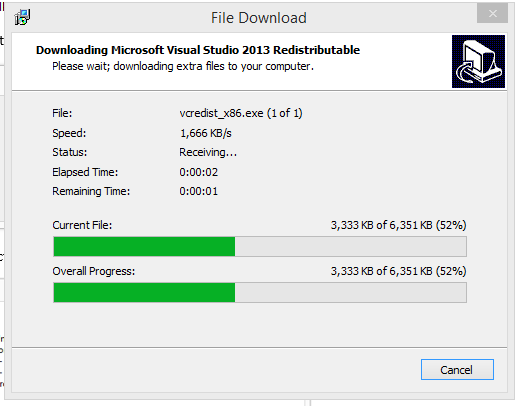
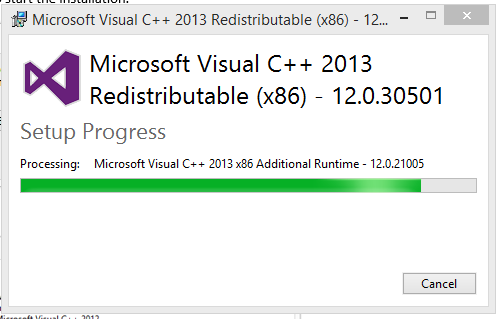
You may see a few images appear and disappear automatically like the ones above.
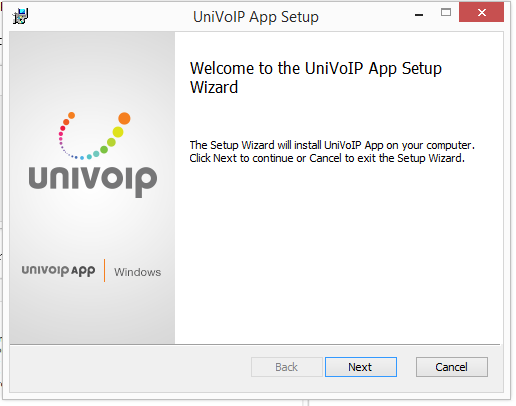
Click "Next".
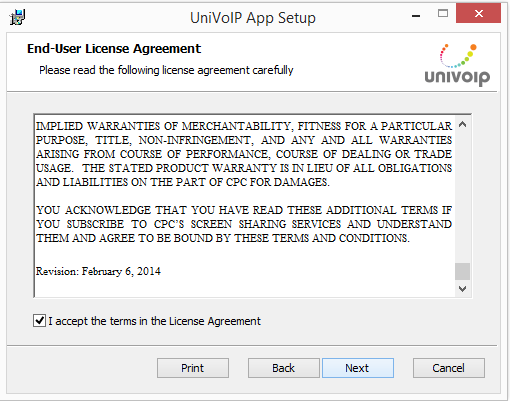
Read the End-User License Agreement, click the box to accept and then press "Next".
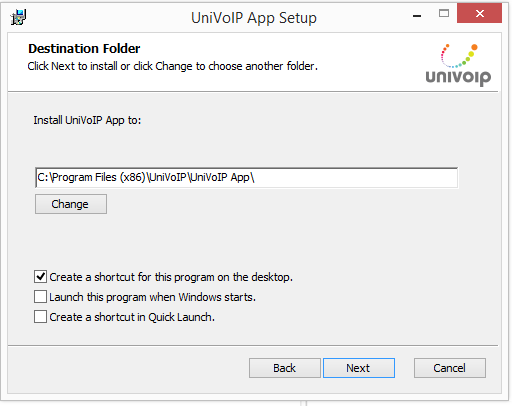
Choose the Destination Folder and other options from the lower area, then press "Next".
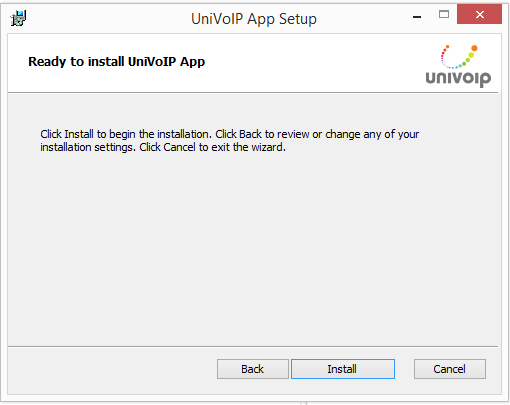
Click "Install".
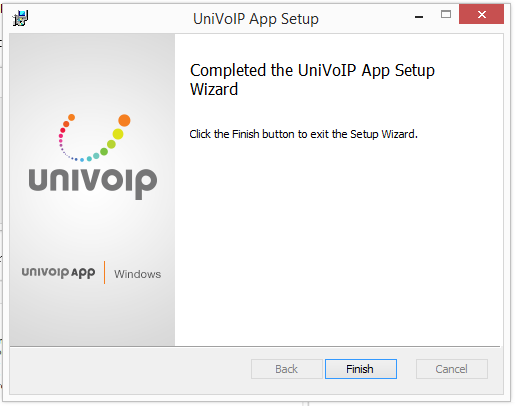
Click "Finish".

Start UniVoIP App as you would any other program: Use the Windows Start menu or double- click the desktop icon.
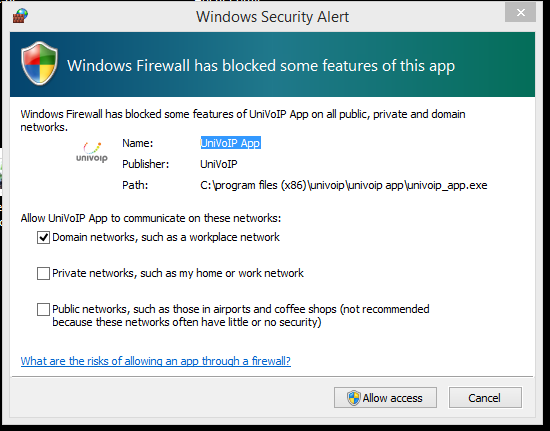
If you see the window above, make your firewall selection(s), then press "Allow Access".
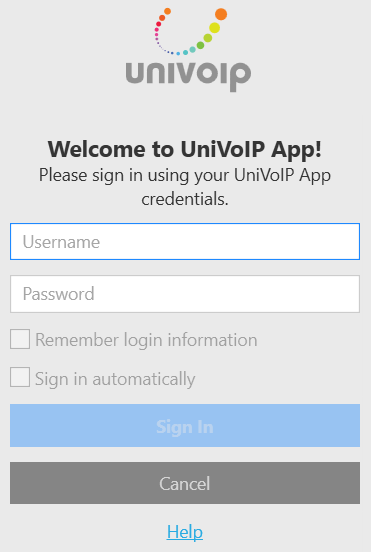
Enter the username and password for this particular user provided by UniVoIP, make optional selections, then click "Sign in".
Enter Your Phone PIN Number after Logging into the App for the First Time
1. Click on the Globe Icon located in the lower right corner of the UniVoIP App interface.

2. Click on the right arrow next to Settings.
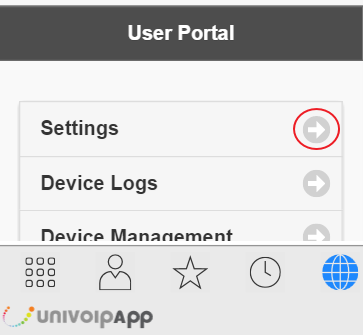
3. Click on the right arrow next to Phone PIN.
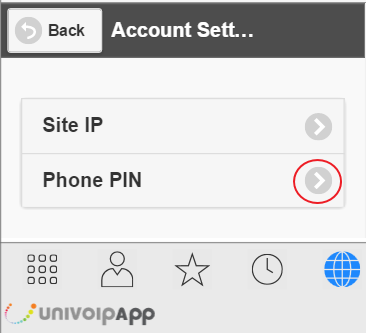
4. Enter your existing Phone PIN Number and
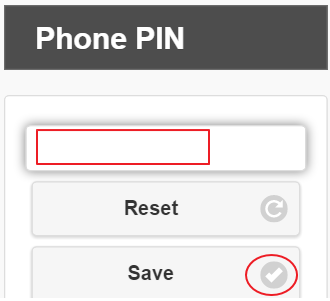
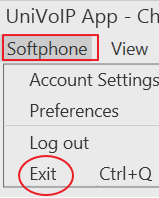
5. Exit out the UniVoIP App click the right arrow next to Save.
6. Restart the UniVoIP App

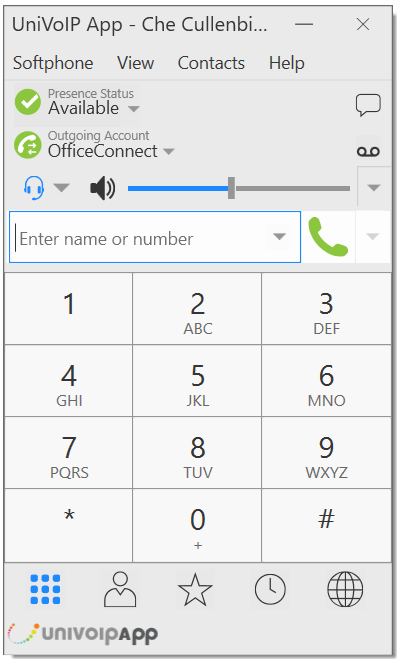
Viola! The UniVoIP App is now ready for use.
Having Troubles?
UniVoIP APP includes these tools for helping you troubleshoot problems. From the menu, choose Help > Troubleshooting to access these tabs.
• You can verify that your camera is working (Preferences > Devices > Test Camera).
•Device tab: You can verify that your microphone and speakers are working and can set the volume to a comfortable level without having to actually place a phone call.
•Audio tab: You can verify that you are successfully connected to the SIP server. While you are on a phone call, you can test the quality of the audio.
•Support tab: If none of the above help you solve your problem, you can create logs of your activity and send them to UniVoIP support.
Quitting UniVoIP App
To quit UniVoIP App, choose Softphone > Exit or press Ctrl-Q.
Checking for UniVoIP App Updates
To check for updates to UniVoIP App, choose Help > Check for Updates. The Auto Update window appears.
• If a new version of the software is available, you can download it from this window.
• If no newer version is available, this window informs you that your version is up to date.
The UniVoIP App Menu
Softphone
-
Accounts. These settings have been pre-set by UniVoIP.
-
Preferences. These settings control the way that you work with UniVoIP App.
-
Log Out. To log off and minimize UniVoIP App to the system tray. If you click the UniVoIP APP icon in the status bar, the Login screen appears.
-
Exit. To shut down UniVoIP App. You can also exit by pressing Ctrl-Q.
View. Control how UniVoIP APP looks.
Contacts. Lets you work with contacts.
Help. Provides access to troubleshooting and updates.
Compact View
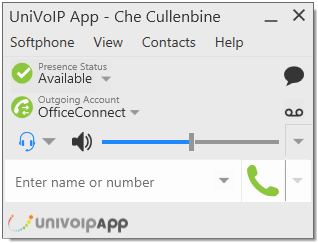
To create this compact view, go to UniVoIP APP, click View and hide all resources including Dialpad.