
Settings - General
To view or edit your General Settings, click on Settings in the left navigation panel.
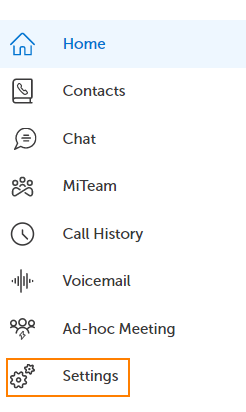
"General" should already be highlighted in the middle panel. If not, click on General.

The right panel contains the general setting options to choose from.
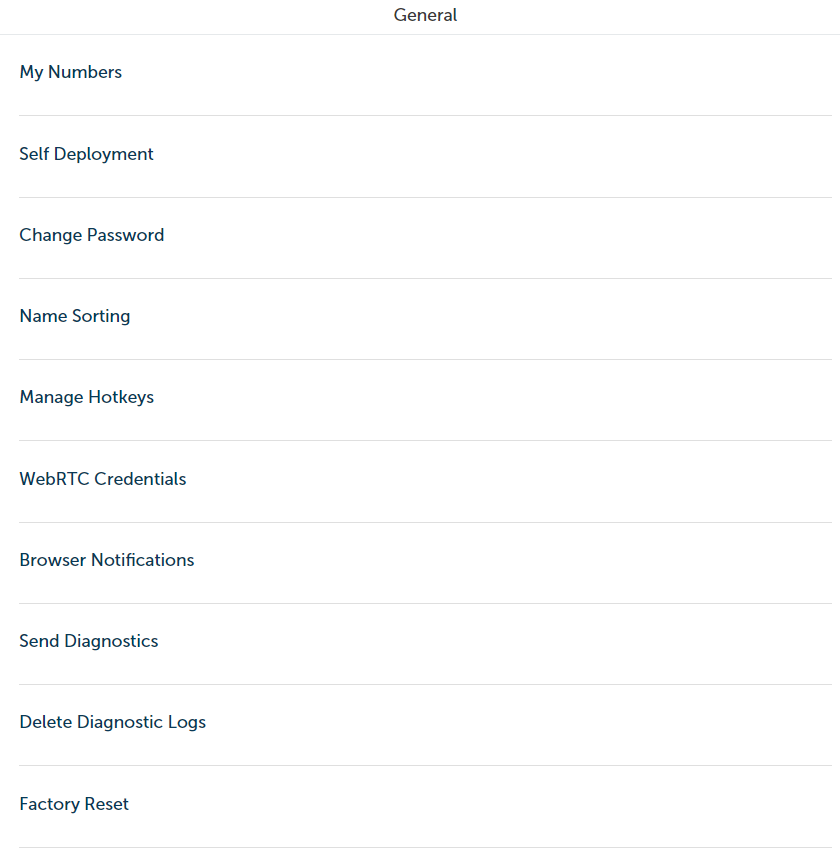
My Numbers
The My Numbers area lists devices and their extension numbers that are assigned to you. You can add outside phone numbers here too, perhaps your cell phone number. The benefit is that the endpoints listed here can be set as your Call Flow endpoints for any of your Statuses.
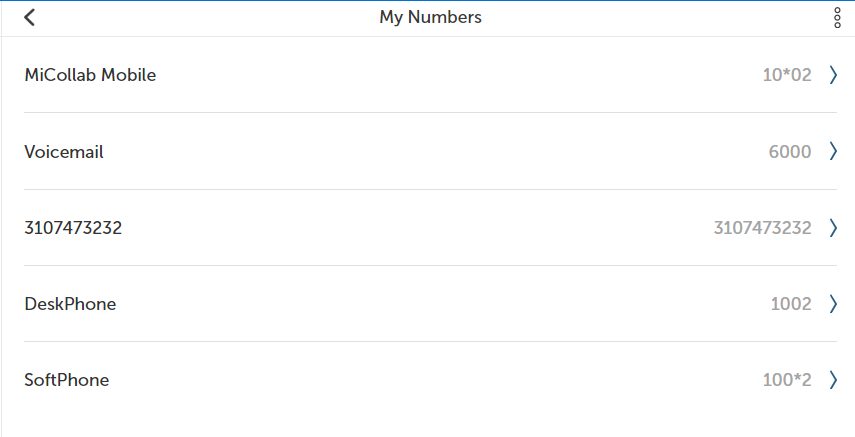
In the example above, this user's endpoints are:
-
User's MiCollab Mobile Softphone (for Power Users only)
-
User's Voicemail Box
-
User's Outside Number (could be a cell phone number)
-
User's DeskPhone
-
User's MiCollab Softphone (built into MiCollab Desktop Client for Advanced Users, Power Users or Agents)
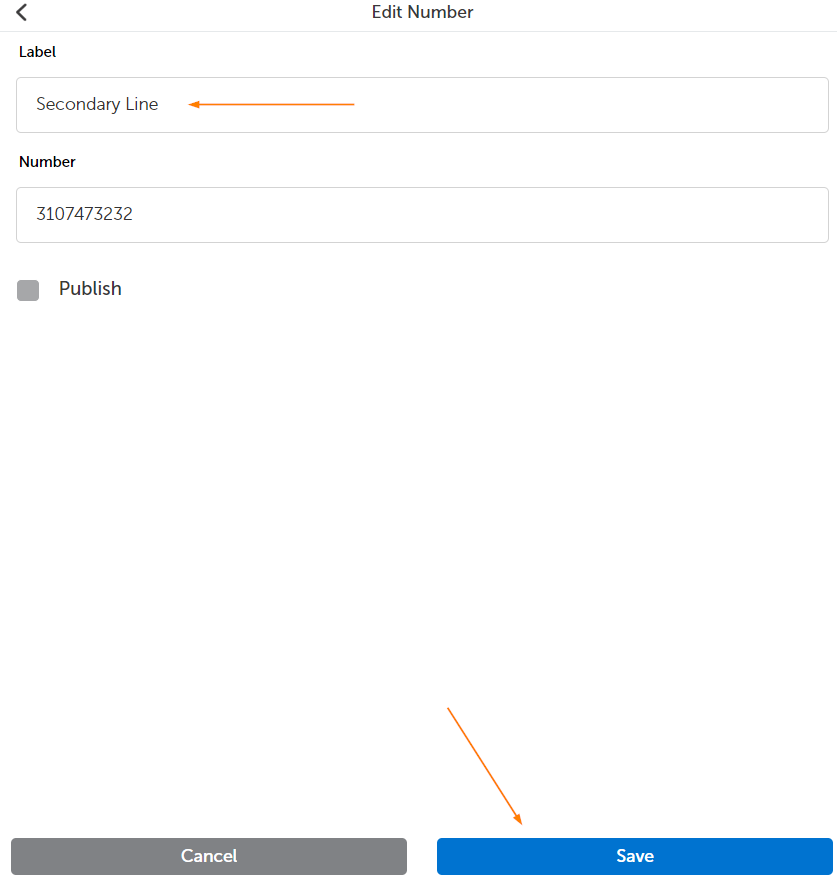
You can change the name (Label) of an endpoint by clicking on the right arrow located to the right of the number.

Enter a new name and click Save.
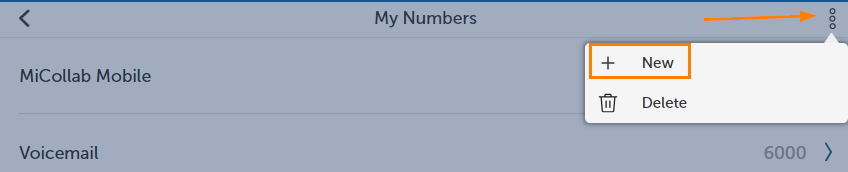
You can add your own outside phone number(s) too. Click the More icon, then click New.
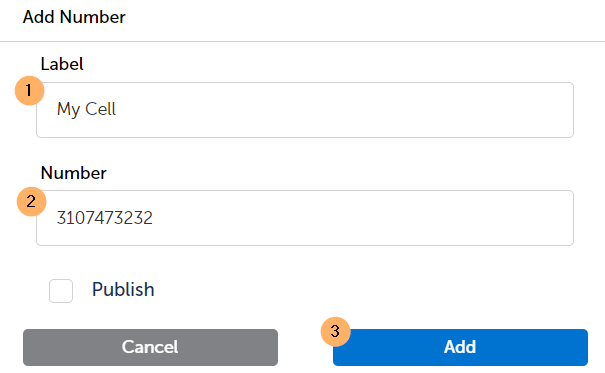
Enter the name (Label), enter the phone number, than click Add.
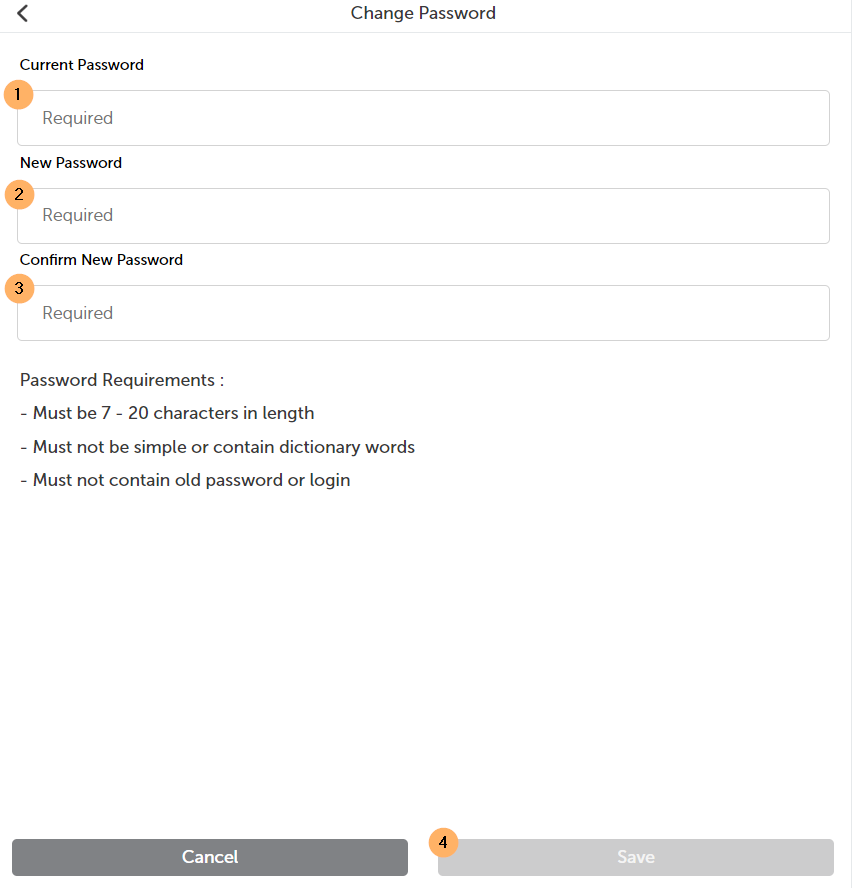
Change Password
You can change your MiCollab Web Portal Password so long as you know what your current password is and the new password meets the password requirements.
WebRTC Credentials
These fields will be auto-populated for Advanced and Power users.
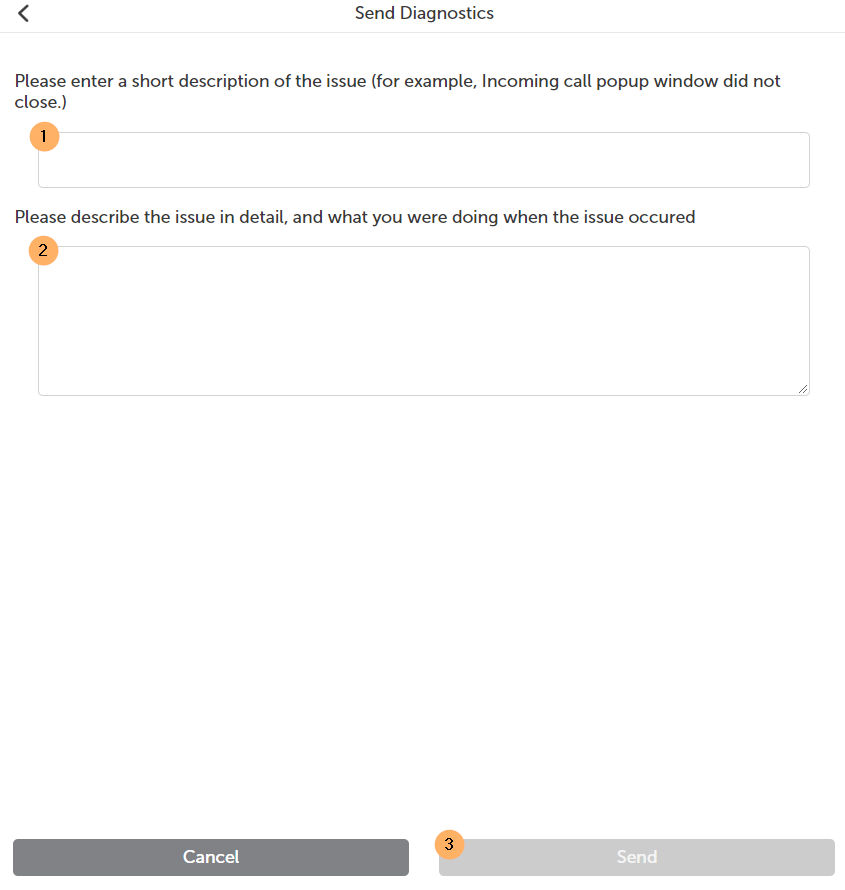
Send Diagnostics
If you are having technical functionality issues with the MiCollab Web Interface, you can use a simple form to notify UniVoIP Support of the issue.
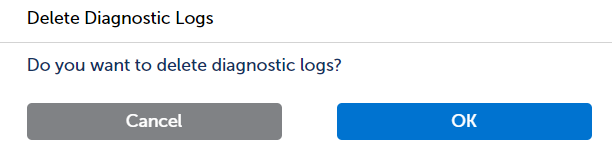
Delete Diagnostic Logs
You can use this option to clear any Existing diagnostic log files from your computer.
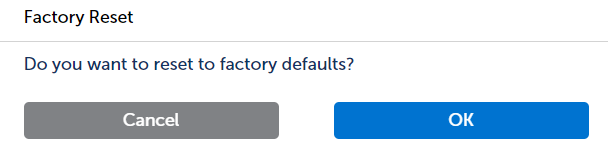
Factory Reset
You can use this option to reset all options and settings back to their initial state. It will be like it was when you signed in for the very first time.
Return to the MiCollab Web Portal Main Menu