
Contact Groups Including Favorites
All your coworkers can be found in the Corporate Group, however most users prefer to create smaller, subgroups of their coworkers.
You can create new groups and then assign the people you want into each of them. There is also a Favorites Group that allows you to add a contact to it with just one click.
To create a new group:
-
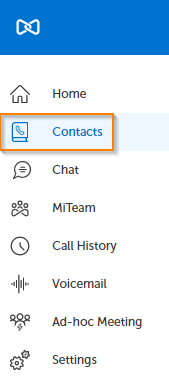
Click on Contacts in the left navigation panel.
-
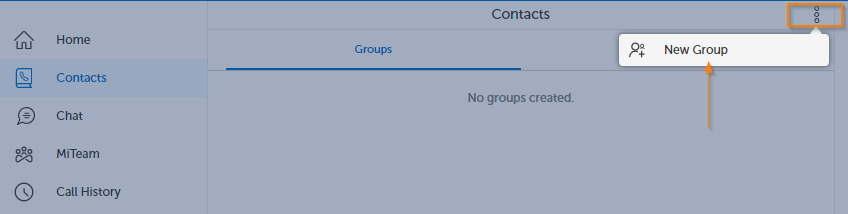
Click on the More Icon, then click on New Group.
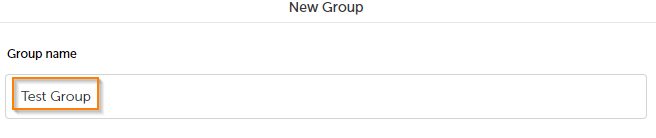
3. Enter a Group Name
4. Click on the plus sign

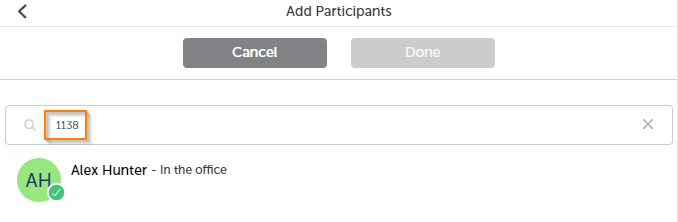
5. Search for Participants either by name or extension number. Repeat until you have added all of the contacts you intend to add.
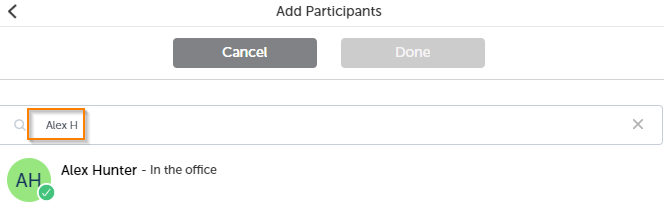
6. Click on Done when finished adding contacts to your new group.

7. Click on Create to finish the creating the group.

To add more members to an existing group:
-
Click on Contacts in the left navigation panel.
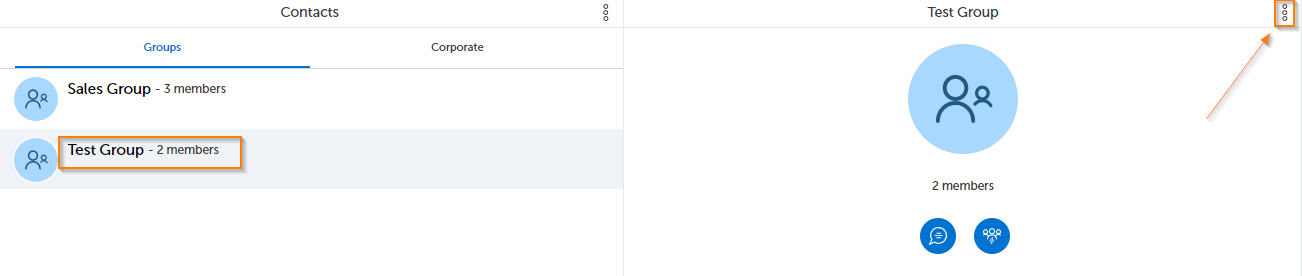
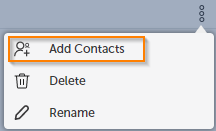
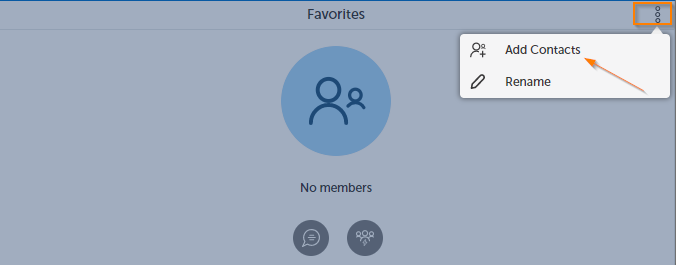
2. Select the group you want to add a contact to, click on the More Icon, then click Add Contacts (see picture below).
3. Search for Participants either by name or extension number. Repeat until you have added all of the contacts you intend to add.
4. Click on Done when finished adding contacts to your new group.
5. Click on Create to finish the creating the group.
How to add a contact to the Favorites Group:
1. Click on Contacts in the left navigation panel.
2. Click on the Favorites Group:
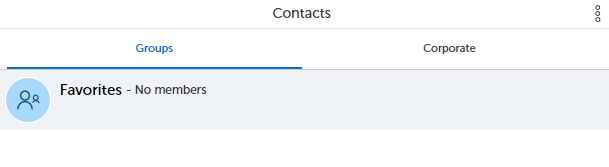
3. Click on more and Add Contacts
4. Search for Participants either by name or extension number. Repeat until you have added all of the contacts you intend to add.
5. Click on Done when finished adding contacts to your new group.
Return to the MiCollab Web Portal Main Menu