
You can customize the wait treatment for a queue; you can:
• Add a new treatment
• Edit the current treatment
• Delete a treatment
• Listen to a treatment recording
Add a new treatment
To Add a Queue Wait Treatment, follow these steps:
1. Edit or Add a queue.
2. Click the Queue Wait Treatment tab.
3. Click Add. The Wait Treatment panel appears.
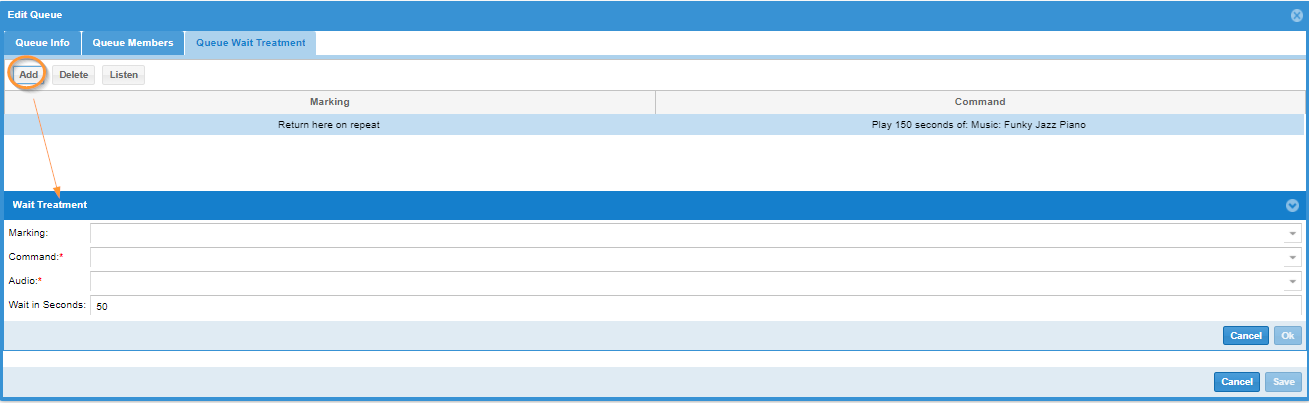
4. Select a Marking type (a special attribute on this wait treatment element)
5. Select a Command, one of Announcement, Music, Ringing, or Position In Queue
6. Enter a wait time between 1 and 7200 seconds (typical is 50-150).
7. Click Ok. The treatment is created.
8. Close the panel.
Edit the current treatment
To edit the current Queue Wait Treatment, follow these steps:
1. Edit or Add a queue.
2. Click the Queue Wait Treatment tab.
3. Double-click the current treatment. The Wait Treatment panel appears.
4. Change the Command as and if required.
5. Change the wait time to between 1 and 7200 seconds (typical is 50-150).
6. Click Ok. The value(s) is updated.
7. Close the panel.
Delete a treatment
You can delete one or more treatments – there must always be at least one treatment.
To delete a Queue Wait Treatment, follow these steps:
1. Edit or Add a queue.
2. Click the Queue Wait Treatment tab.
3. Select the treatment of interest, and click Delete.
4. Click Save. The treatment is deleted.
5. Close the panel.
Listen to a treatment recording
To listen to a Queue Wait Treatment recording, follow these steps:
1. Edit or Add a queue.
2. Click the Queue Wait Treatment tab.
3. Select the treatment of interest, and click Listen. The Player panel appears.
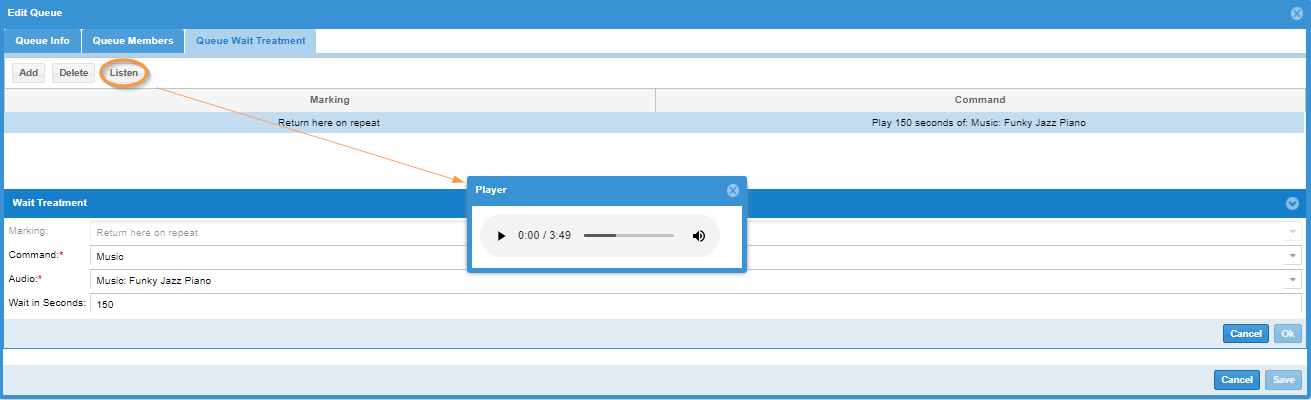
4. Play, pause and close the Player as required.
5. Close the panel.