
The Call Window and Call Control
When you are on a call, regardless of the device you are using, a Call Control Window will appear from the MiCollab Client. You can use the call control window to control various aspects of the call.
The Call Window is seen in the picture below.
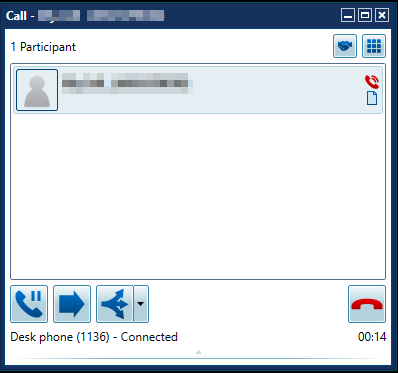
You have a separate Call window for each active call, excluding call transfers and conference calls.
The Call window has the following areas:
Title Bar Buttons
Provide access to the following functions:
-

-

-

-

Feature Buttons
Provide access to the following functions:
-

-

-

-

-

-
-
Uses the embedded softphone to record the call.
-
Start/Resume Recording: Starts or resumes recording after a pause. The recording icon

-
Pause Recording: Stops the current recording. Click Resume Recording to start recording again.
-
Discard Recording: Stops and then erases the current recording.
-
-
-
Recordings are available for playback from the Call History dialog box.
-
Participants Area
The following information (if available) is displayed for contacts involved in the call:
-
Display picture, name and/or number.
-
Contact presence information, including Dynamic Status.
-
Knowledge Management icon

-
Call control buttons
Call control buttons provide one-click access to call control features. The call control actions displayed depend on the state of the call.
Button
Call Control Feature

The Call window displays this button when the number or extension you call is ringing.
Call Me Back: Registers a watcher on a busy internal destination device. When the destination device becomes idle, the system rings your phone. When you answer, the system redials the destination device. This feature is for internal calls only.

Hold: Places the call on hold.
NOTE: The Hold button is not displayed for users who are currently using a SIP device.

Retrieve Held: Retrieves a call from hold.

End Call: Ends the call. When you end a call the Call window closes.


Transfer, Conference: Displays the Transfer or Conference dialog box. Type a contact name or number in the text box and then click one of the following buttons:
-
Consult: Places the current party/conference on hold and calls the transfer/conference destination party allowing you to consult the party regarding the call transfer/conference.
-
Transfer or Conference: Immediately transfers the call to the number you specify and disconnects you from the call.
-
Cancel: Cancels the action.
• You can have up to eight parties in a conference. However, when recording a conference call while in desk phone mode, only seven other parties may participate in the conference call.

Complete Transfer or Conference: Completes the transfer or conference action.

Cancel Transfer or Conference: Cancels the transfer or conference action.

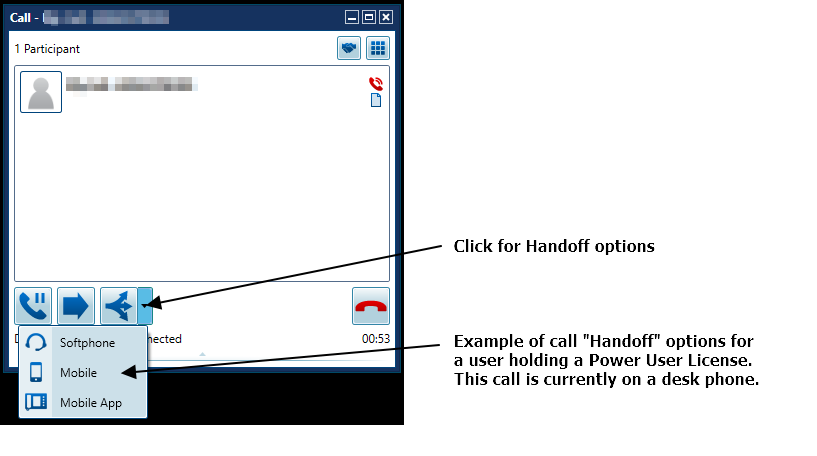
Handoff: Perform a "Push" of the active call to a selected device (from drop down list).
NOTE: The Handoff button will only be present when this account has a Ring Group. The Call Handoff is not supported while the call is in a "held state". The call must be active, i.e. in a "talking state".

Split: Places the party that joined the call last on hold.

Trade: During a consult call or a split call, this control places the active party on hold, and makes the other party active.
-
-
When you are on a call with your softphone, the Call window provides the following volume controls:
-
Volume slider: Drag the slider to change the volume from low to high .
-
Speaker: Click the speaker icon to mute the speaker. Click the mute speaker icon to unmute.
-
Microphone: Click the microphone icon to mute the microphone. Click the mute microphone icon to unmute.
-
Go back to the MiCollab Desktop Client Main Menu