
Collaboration
UniVoIP OfficeConnect Enterprise Edition Advanced Users or Power Users have access to the collaboration interface known as MiCollab Audio, Web and Video (AWV).
The full interface can be accessed from MiCollab's desktop or web client as seen below, or through the MiCollab End User Portal (see your Welcome Email).
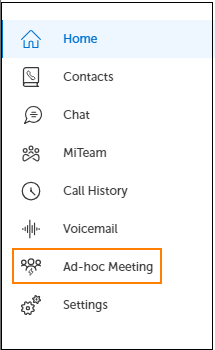
The Ad-hoc Meeting option allows you to hold an instant conference.
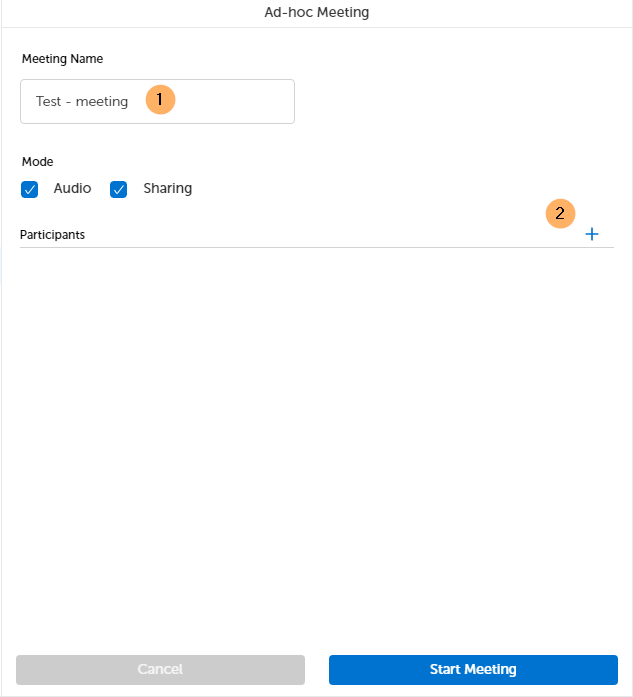
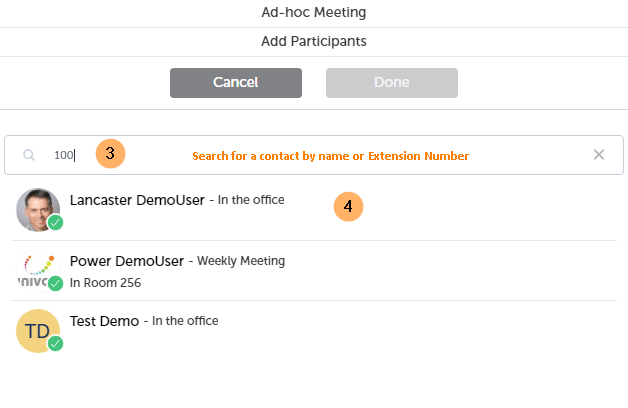
Begin to add participants one at a time.
Once all participants have been added, click on Done
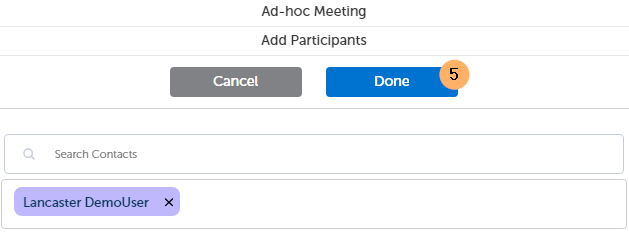
Followed by Start Meeting

Next, you will be prompted to choose a device to dial into the conference bridge or Get a call back from the conference bridge.
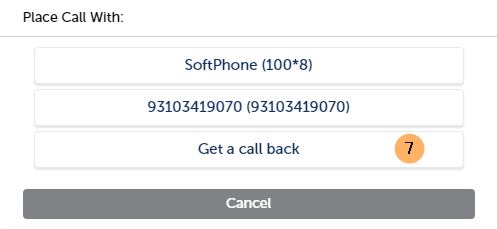
If you choose the Get a call back option, you will receive a call from the Conference Bridge. Once you answer the call, the Audio Web Video (AWV) Conference browser or desktop application will launch on your PC,
and you are now ready to host your conference. For the duration of your meeting, you will manage the conference using AWV's features and functionalities. (E.g. Chat, Screen Share, Video, etc.)
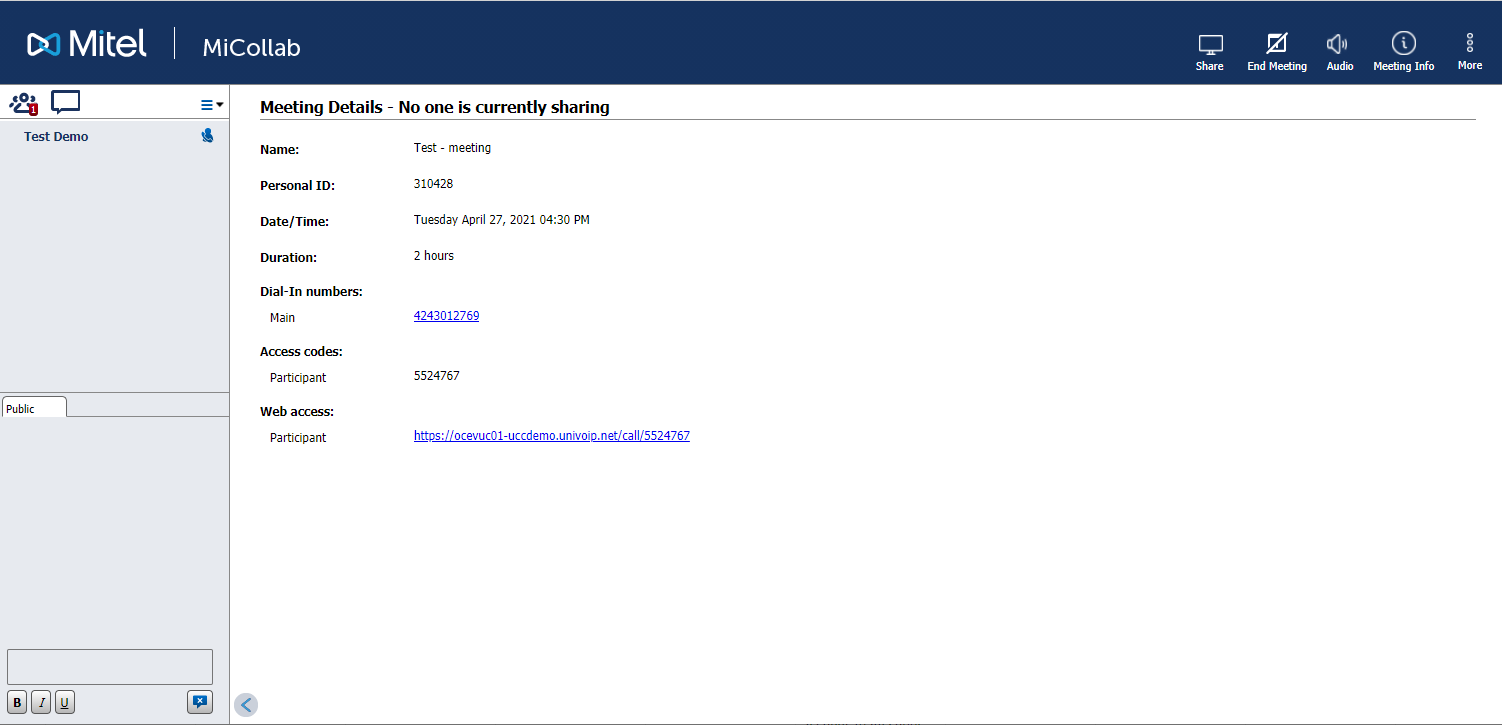
From a participant's perspective, they will receive an invitation to join your AWV Conference Bridge via MiCollab:
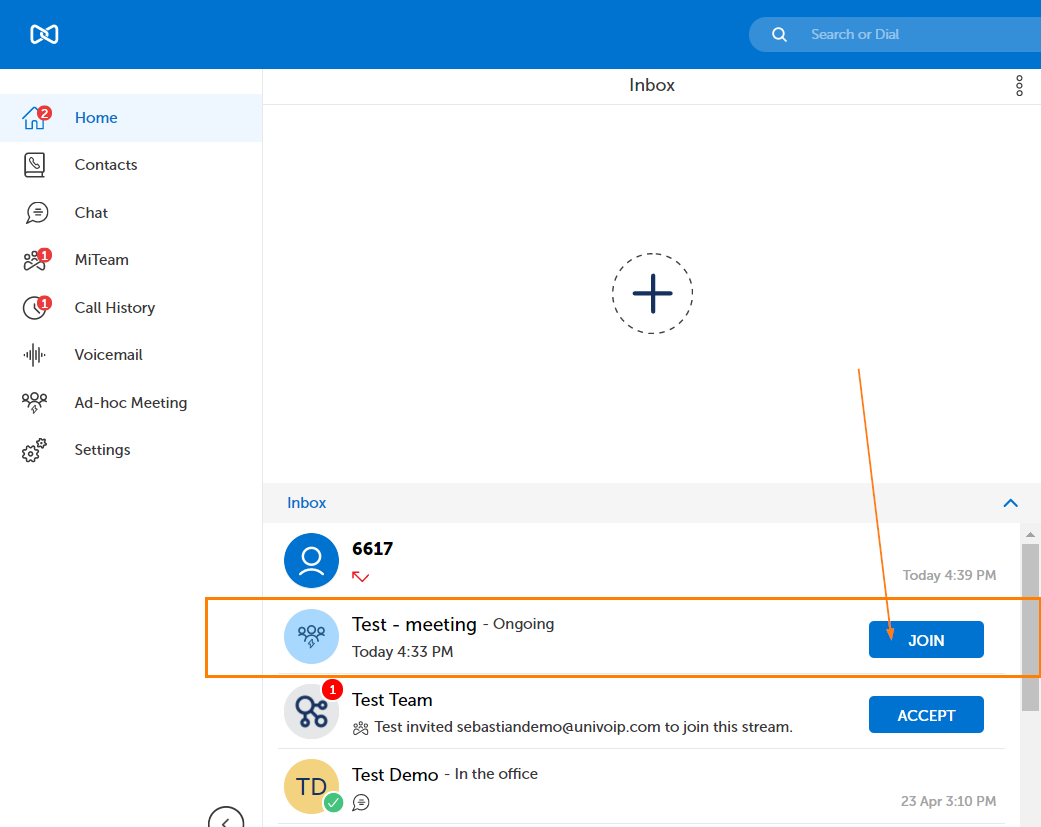
Once they click on Join, they will be prompted to choose a device to dial into the conference bridge or Get a call back from the conference bridge.
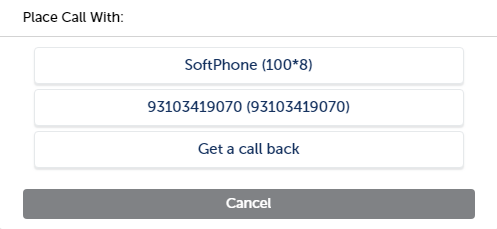
Once an option is selected, the chosen device will dial the participant into the conference bridge, while the AWV application automatically launches and logs in the participant into AWV's interface.
Both Host and Participant are engaged in a live Ad-hoc Meeting!
Go back to the MiCollab Desktop Client Main Menu