
Options
To access options, click on Options in the left navigation panel.
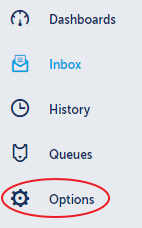
Options are broken down into four areas.
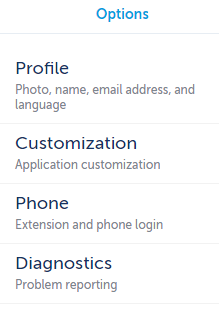
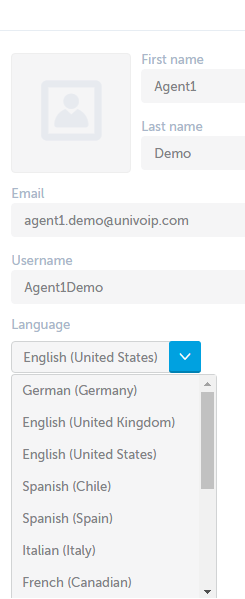
Profile:
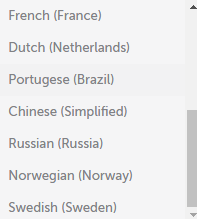
Typically this area is only used by Agents to change their textual language for the interface. By default, the rest of the fields are view only.
Customization:
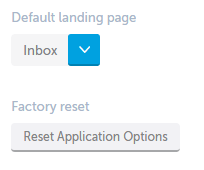
Agents can decide which page is displayed as their default landing page. This is the page that shows up after logging into Ignite Web.
The choices are:
-
Inbox
-
Dashboards
-
History
-
Queues
Pressing the "Reset Application Options" button will set the interface back to how it was the very first time you logged in.
Phone
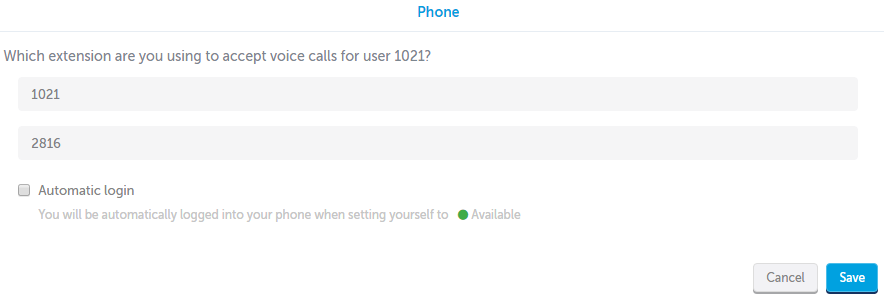
Agents can enter their Extension Number and Phone PIN here so Ignite Web's call control features will trigger the correct handset.
The "Automatic Login" checkbox can be checked so that the Agent is logged into their handset each time they change their status to "Available".
Diagnostics
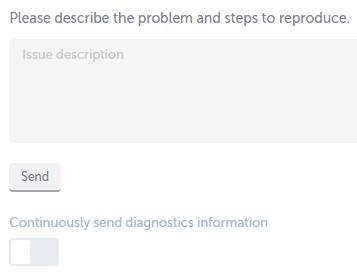
If you are experiencing an issue with Ignite Web, you can report the issue from the interface.
In the open text field, describe the issue with as much detail as possible, then click "Send".
Return to the Ignite Web Portal for Agents and Supervisors Main Menu