
Transfer the call directly to another number or extension without announcing the transfer to them:
-
Tap the More Icon, then select Transfer on the pop up.


2. Use the Dial Pad to enter the number to transfer to.
If you need to bring the Dial Pad into view, press the Phone Icon in the lower right.

3. Tap the Transfer Key at the bottom of the Dial Pad.

Transfer to a Contact or History Entry (Unattended Transfer)
-
Tap the More Icon, then select Transfer on the pop up.
2. Tap the Contacts Icon or the History Icon.
3. Tap the contact or history entry you need to transfer the call to.
If a Contact, tap the number.
-
Confirm by tapping on "Transfer to xxx" in the pop up notification.
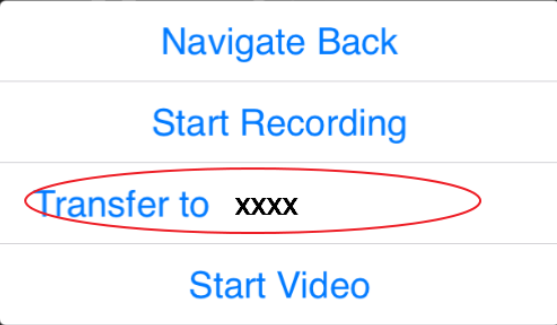
"xxx" will be the number or person you just selected