
To add a phone key profile, follow these steps:
-
Expand Company Settings in the left menu.
-
Click Phone Key Profiles.
-
Click

-
Type a Profile Name (E.g. 6920 General Phones)
-
Click Save.
The system displays the Phone Key Profile Details page.
6. From the Phone Name drop down menu chose the your Phone Model
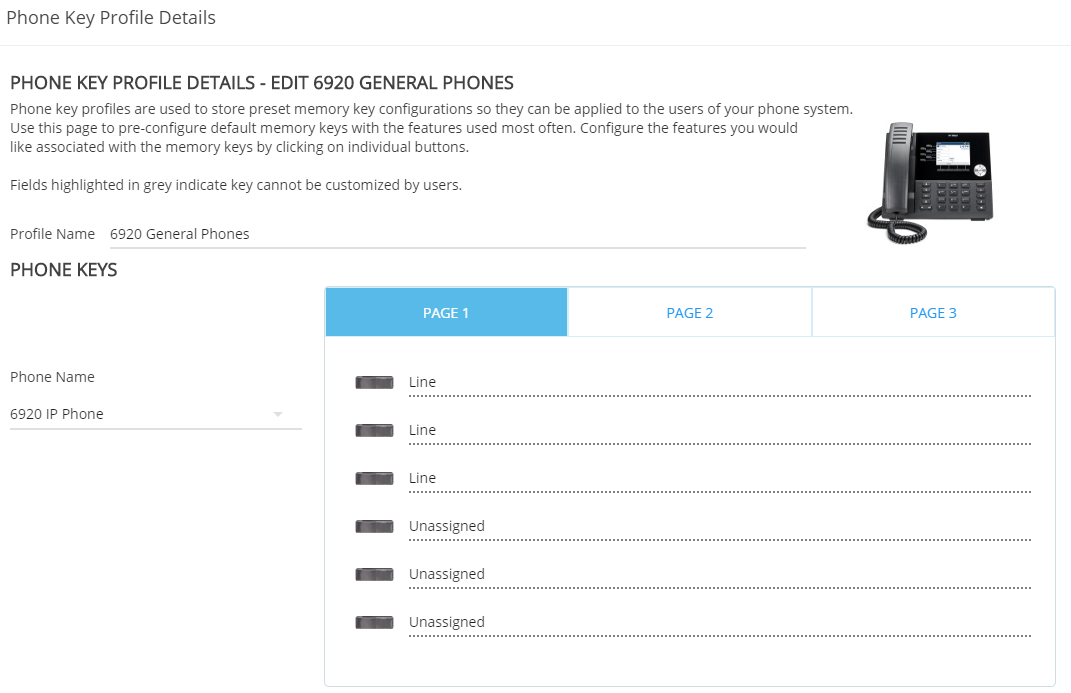
The system displays the Program Memory Key Details page.
7. Click the button 
-
-
Feature: Select the feature to be programmed.
-
Label: Type in a description. If no description is typed the system default will be applied.
-
Locked: To prevent a user from changing the selected memory key configuration, select this check box.
-
Details: Select from a drop-down list or type in the required number without any spaces or characters. Not all features require this field.
-
Please note: You should lock the Line Appearance configurations in the phone key profile. Line Appearances are required to make and receive phone calls.
8. Click Save to save the Feature. Repeat steps 7- 8 for each memory key to be programmed.
9. Click Save again to save the Profile
Your phone key profile is updated.
You can assign users to the new profile if you choose. See Assign a Phone Key Profile to a User or Location.