You can view a report from the Report Inbox. The Report Inbox includes:
Today's reports
Today's reports displays all of the reports generated today under your user name.
Yesterday's reports
Yesterday's reports displays all of the reports generated yesterday under your user name.
All of your reports
All of your reports displays all of the reports generated under your user name over the last 30 days.
lnbox Manager
Inbox manager deletes reports from your Inbox by date range.
The Report Inbox has the following parameters:
Report type
The Report type field lists the report name.
Media server
The Media server field defines the media server against which you are running the report.
Name
If you are creating an Agent group report, then the Name field specifies the name of the Agent group. If you are creating an Agent report, then the Name field specifies the name of the Agent.
Reporting number
If you are creating an Agent group report, then the Reporting field specifies the reporting number of the Agent group. If you are creating an
Agent report, then the Reporting field specifies the reporting number of the Agent
Start date
The starting date of the time period covered in the report
End date
The ending date of the time period covered in the report
Start time
The starting time of day included in the report
End time
The ending time of day included in the report
lnterval
The interval selected in the report
Status
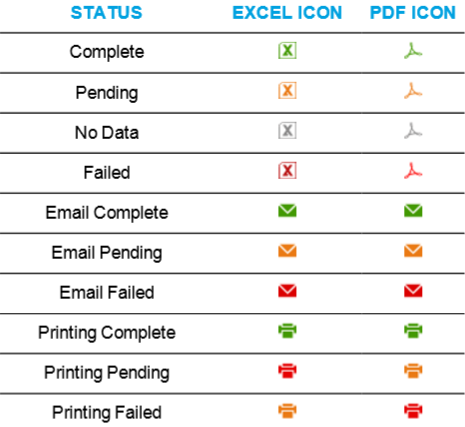
The Status field confirms if your report is ready. When a Complete icon appears in the status field the report is waiting in your Report Inbox. When a Pending icon appears, the report is not ready. A No data icon means no records are available for the parameters you specified. A Failed icon means the report did not generate. If a report fails, the Reporter service logs errors in the NT Event log. Table 2 describes the status indicator icons.
View
The View command displays reports generated in Microsoft Excel.
Delete
The Delete command deletes reports from your Report Inbox.
Table 2: Report status indicators