
Chat
You can Chat 1:1 or group chat with your coworkers.
There are four ways to start chatting:
-
Tap on a historical chat
-
Tap on a chat entry if seen in your Inbox
-
Start a fresh Chat from a Contact (coworker)
-
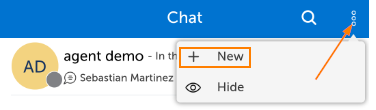
Start a fresh chat from the Chat Menu
To get to the Chat Menu, tap "Chat" in the Left Panel
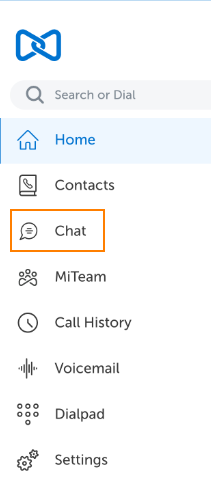
It looks like I only have one historical Chat so far
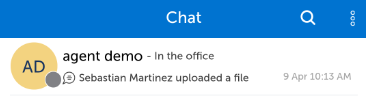
If I Tap on a historical Chat, I can continue to chat with that coworker
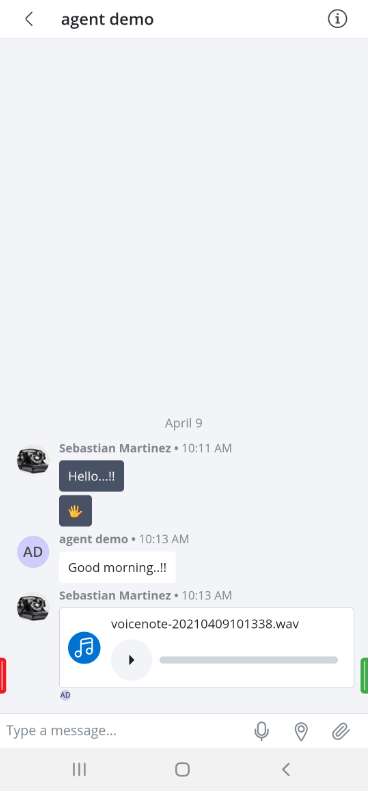
You can add additional coworkers to any Chat by tapping the Info Icon
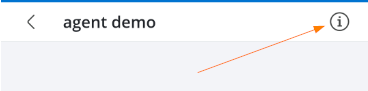
Chose to Add Participants, then search a participant by first/last name or Extension number
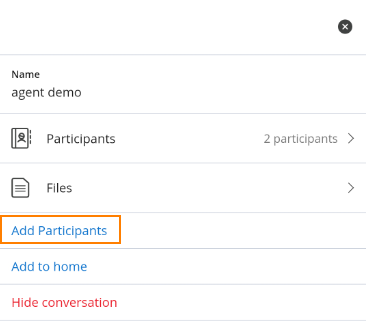
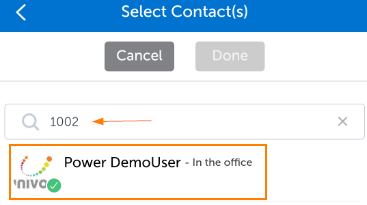
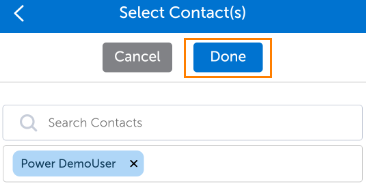
Once the participant has been selected click on Done. Repeat to add additional participants to the chat.
You can start a fresh Chat from the Chat Menu by tapping the More Icon, then tap "New"
Search a participant by first/last name or Extension number
Once the participant has been selected click on Done. Repeat to add additional participants to the chat.
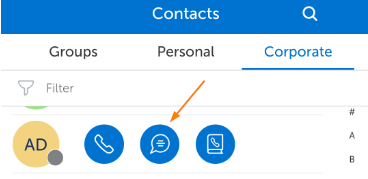
You can start a fresh Chat from your Contact Lists
Tap on the Contact, then tap on the Chat Icon
Return to the MiCollab for Mobile Main Menu