
We strongly recommend that you perform your initial setup from within a "known" network, such as in your enterprise or university campus Wi-Fi zone or within range of your home network (if you have one) and not in a network such as an Internet café.
-
Download the UniVoIP App from Google Play Store
-
Launch UniVoIP App by tapping the UniVoIP App icon
-
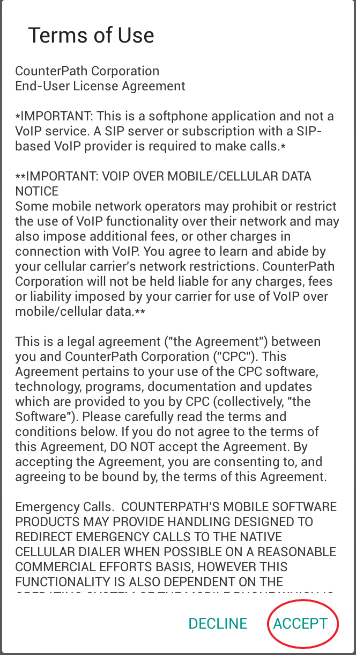
Read, then Accept the Terms of Use
-
Enter your Username and Password
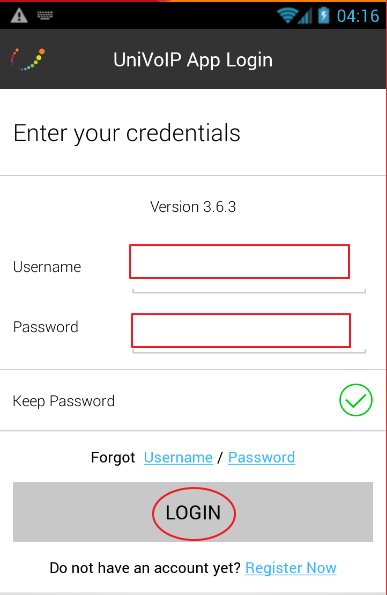

You can let UniVoIP App use mobile data when no Wi-Fi is available. To do so, launch UniVoIP App and go to Settings > Preferences and turn on "Use When Available" and "Allow VoIP Calls."
Enter Your Phone PIN Number after Logging into the App for the First Time
1. Press the Setting Icon located in the lower right corner of the UniVoIP App interface.
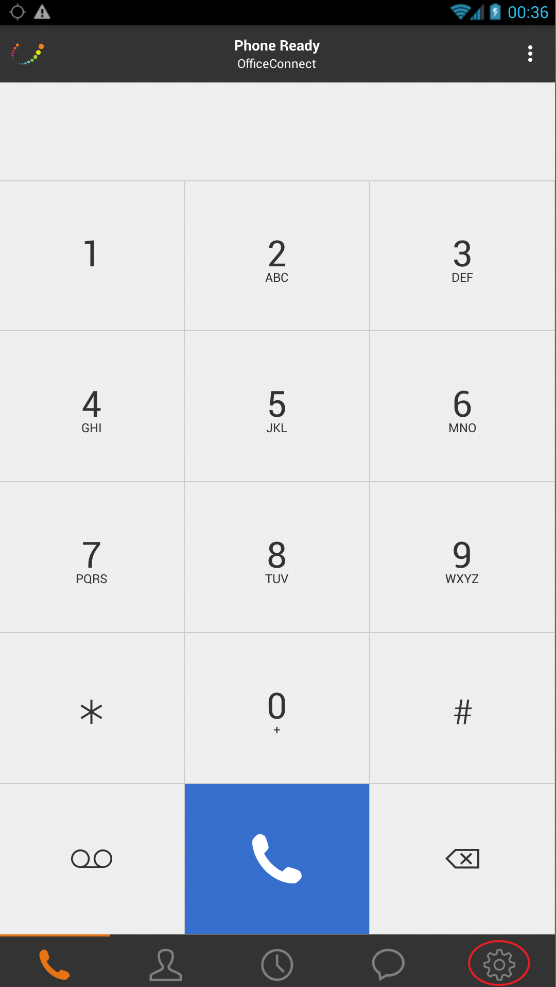
2. Press Device Settings.
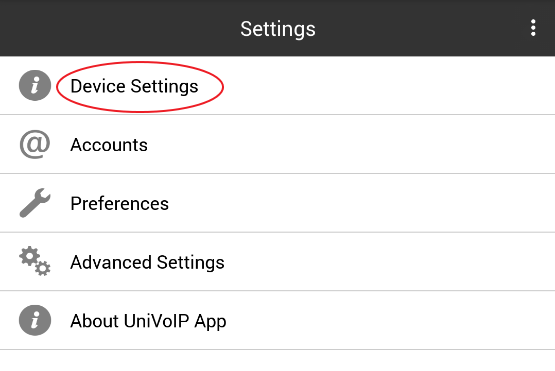
3. Press Settings.
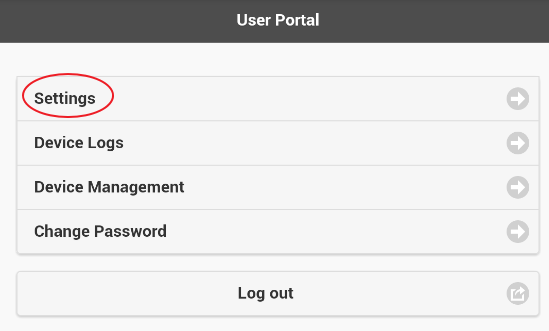
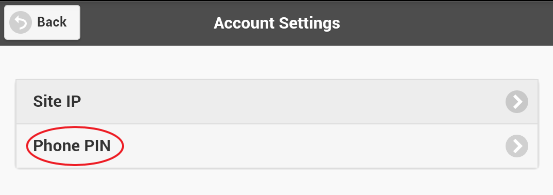
4. Press Phone PIN.
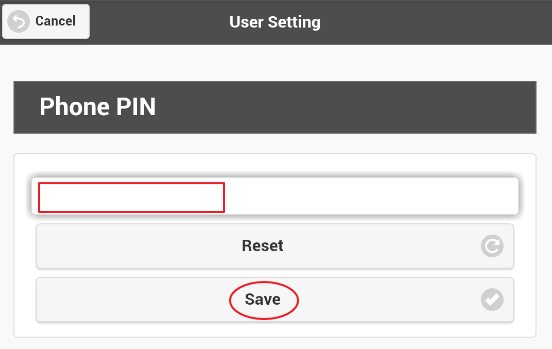
5. Enter your Phone PIN, then press Save.
6. Close the App, then re-launch it. Congratulations! You can now use the UniVoIP App.
Account Status Icon:
|
|
|
|
|
|
|
|
|
|
|
|
|
|
|
|
|
|


