
Users
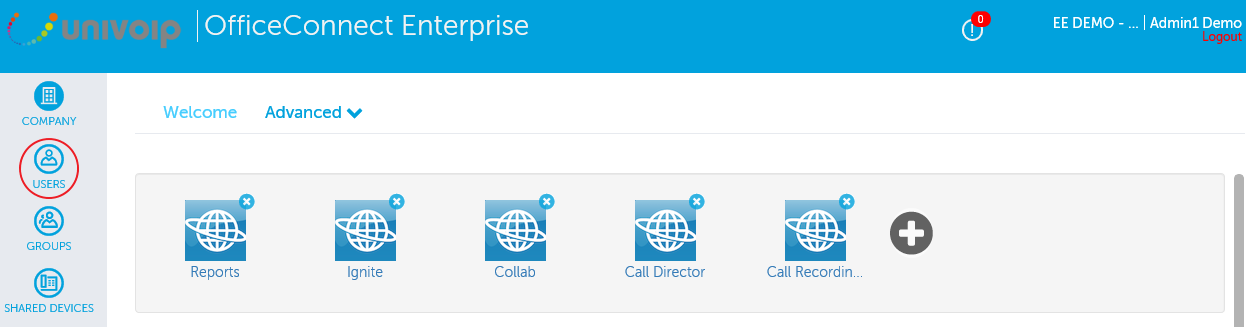
In the left Navigation Panel, click on "Users".
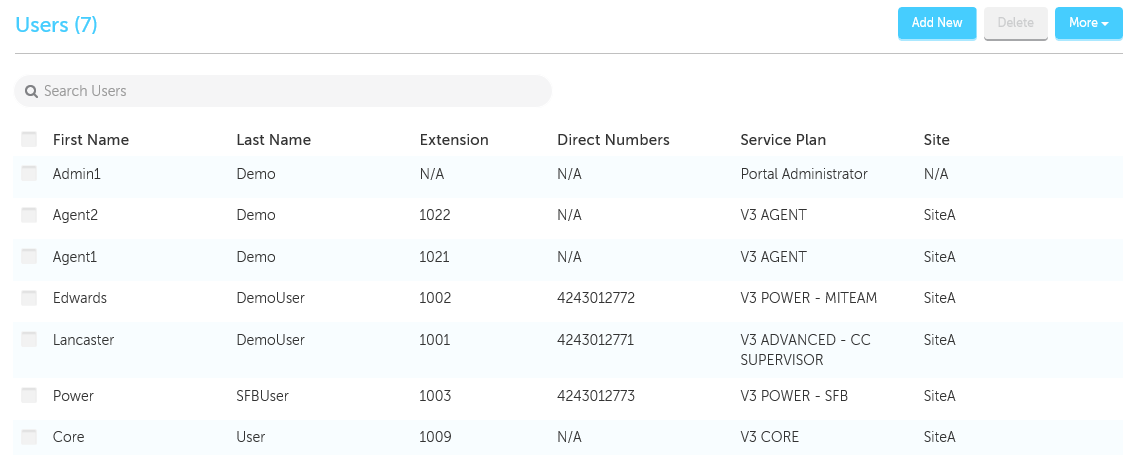
You will now be viewing a list of your current users.
To view or resend a User's Welcome Email
-
Check the box to the left of the user's first name
-
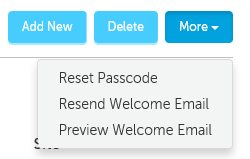
Click the "More" button
-
Click "Resend Welcome Email" to email a new Welcome Email which will be followed by a Password Email with a new User Portal and MiCollab password
or... -
Click "Preview Welcome Email" to see a copy of the last Welcome Email that was sent
To reset a User's Passwords by Type
-
Check the box to the left of the user's first name
-
Click the "More" button
-
Click "Reset Passcode"
-
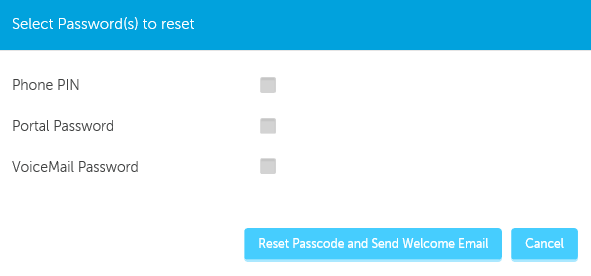
Select the password(s) to reset
-
Phone PIN
-
Portal Password
-
Voicemail Password
-
-
Click "Reset Passcode and Send Welcome Email"
To Add a User
-
Click Users and then click Add New.
-
User Profile - Enter the User details. Fields marked with an asterisk (*) are required. Enter a minimum of 4 characters for the Username.
-
Click Next.
-
Service Plan - Click Select to choose a phone plan for the User. The chosen plan will be highlighted and Selected will display.
-
Click Next.
-
Service Programming - Select the service details for the User. Fields marked with an asterisk (*) are required.
-
Click Next.
-
Phones - From the Phone Type drop-down list, select the type of phone for this User.
-
From the Emergency Response Location drop-down list, select the location to which emergency call will be sent.
-
(Optional): From the Select a predefined key template to be applied to this phone drop-down list, choose a key template for the primary phone. Phone key templates apply to the primary phone only.
-
(Optional): Enter the MAC Address of the phone.
-
Click Next.
-
Advanced - Select the call handling rules.
-
Click Save.
To Modify a User
-
Click Users and then click a user's name.
-
Select the details that you want to modify from the task menu bar, for example Phones.
-
Make the changes and then click Save.
To Delete a User
-
Click Users.
-
Click the check box for the User you want to delete.
-
Click Delete.
A note regarding adding new Users for customers who are currently using Active Directory: UniVoIP can upload your .ldif file making bulk user creation easy.
Return to the Enterprise Admin Portal Main Menu