
To configure One Click Calling, follow these steps
-
Right click on its icon and select Settings. The application returns the Settings dialog.
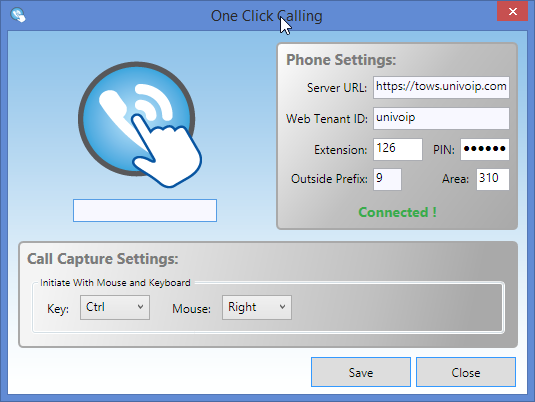
2. Enter the following Phone Settings:
-
-
Server URL— https://tows.univoip.com
-
Web Tenant ID— your OfficeConnect Tenant
-
Extension—your extension
-
PIN—your PIN
-
Outside Prefix—digit to dial to obtain an outside line
-
Area Code—your area code.
-
3. Enter the following Call Capture Settings:
-
-
Initiate With Mouse and Keyboard—from the pull-own menus, choose the combination of key and/or mouse click action to be used to initiate One Click Calling.
-
4. Click Save.The application returns Connected! at the bottom of the Phone Settings area. Should the application return Not Connected!, please see One Click Calling - Troubleshooting.