
Set Up your Mailbox
Before you can use voice mail, you must first set up your mailbox.
To set up your mailbox:
-
Dial the voice mail Hunt Group number provided by your system administrator.
-
Follow the verbal instructions to create your personal passcode and to record your name and greeting.
-
Set up Call Forwarding to direct your calls to the voice mail hunt group number.
Enable Visual Voice Mail
To enable Visual Voice Mail
-
Press the blue Menu key

-
Press Settings.
-
Press Message Key Configuration.
-
Select Open Voice Mail Application.
-
Press Save.
Opening the Visual Voice Mail Application
You can open the Visual Voice Mail application by selecting it in the Application list or by using the Settings application to program a key (either a feature key or the Message key, 
|
|
Note: You must log out of Visual Voice Mail before you can access your voice mailbox from the dialpad. |

Log Into Your Mailbox From Your Own Extension
To login to your mailbox from your extension:
-
Open the Voice mail application. Note: The mailbox number assigned to the prime extension of this phone is displayed. From this window, only the mailbox assigned to this extension can be logged into. If this is not your mailbox number, see Log into your mailbox from another extension. If there is no mailbox associated with the phone's primary DN, the mailbox status is displayed as No Mailbox. In this case, see Log into your mailbox from another extension.
-
Enter your passcode.
-
Press OK.
-
If you wish to have the system remember this passcode, press Remember my passcode to enable the check box ().
-
Press Login.
|
|
Note: While you are logged into your mailbox, no indication of any new messages arriving is provided until you log out and log in again. |

Log Into Your Mailbox From Another Extension
To login to your mailbox from another extension:
-
Open the Voice mail application.
-
Press Connect as guest.
-
Enter your mailbox number.
-
Press Enter Passcode.
-
Enter your passcode.
-
Press Login.
|
|
Note: If you wish to return to the owner login window, press Connect as owner at any time. |

Log Out Of Your Mailbox
To logout of your mailbox:
-
Press Logout. This closes the Voice Mail application.
|
|
Note: After five minutes of inactivity, you are automatically logged out of your mailbox and the Voice Mail application closes. When you close the Voice Mail application, you are not automatically logged out of your mailbox. |

About the Visual Voice Mail Main Window
Navigation KeysMessage ListControl Keys 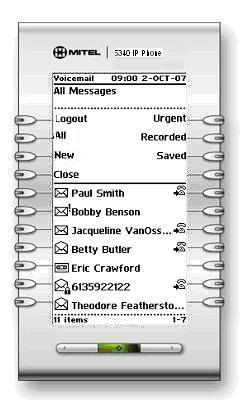
The Voice Mail application main window contains a chronological list of the voice messages in your mailbox, with the oldest message listed first. Use the Navigation keys to scroll through the messages. By default, only new messages are listed when the main screen opens. You sort the list by message type using the sorting keys (All, New, Urgent, Recorded, Saved) in Control keys area. Messages are marked in the following ways:
|
Icon |
Type of Message |
|
|
New (never played) |
|
|
New Confidential |
|
|
New Urgent |
|
|
New Confidential Urgent |
|
|
Saved |
|
|
Saved Confidential |
|
|
Saved Urgent |
|
|
Saved Confidential Urgent |
|
|
Recorded calls recorded using the Record A Call feature |


|
|
Note: Confidential messages cannot be forwarded. |

Display Message Details
To display details about a message:
-
Open the Voice mail application.
-
Login to your mailbox.
-
Press on a message in your message list. The Message Details window displays showing the following information about your message:
-
Message sender name and number (if available)
-
Message type: new, saved, confidential, urgent or recorded, receipt confirmation
-
Date, time and duration of message
Message Details 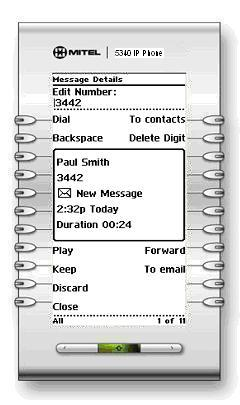
The Message Details Window
In this window, you can save (Keep), play, or delete (Discard) the message. You can send the voicemail to your email if the Forward to Email feature is enabled or forward it to another user. You can dial the message sender or add the message sender to your contact list in the People application.
-
To view other messages and their details, use the Navigation keys (


Play a Voice Message
To play a voice message:
-
Open the Voice mail application.
-
Login to your mailbox.
-
Select a message in your message list.
-
Press Play. Control the play of the message via the following command buttons:
-
stop
-
pause
-
rewind the message by five seconds ( Skip)
-
fast forward the message by five seconds (Skip )
-
go to the beginning of the message (| To start)
-
go to the end of the message (To end |)
|
|
Note: The audio connection is terminated after 30 seconds of idle time. |

Dial Message Sender
To dial the phone number of a message sender:
-
Open the Voice mail application.
-
Login to your mailbox.
-
Do one of the following:
-
In the main window Message List, press the Dial key to the right of the message.
-
Select a message in your message list to display the Message Details, and then press Dial.
If there is no known number, the Dial key is disabled (no icon appears next to the key).
If the number is external, enter the required prefix digit (for example "9") to access an outside line before pressing Dial. When dialing from the window Message List, the number is dialed as displayed; no prefix entry is allowed.
Pressing Dial may display the Phone application depending on the Call Notification preference selected in the Settings application.
Save a Message
To save a message:
-
Open the Voice mail application.
-
Login to your mailbox.
-
Press on a message in your message list.
-
Press Keep. The saved message is removed from the new list and added to the saved list.
Delete a Message
To delete a message:
-
Open the Voice mail application.
-
Login to your mailbox.
-
Press on a message in your message list.
-
Press Discard. The next message in the message list is displayed. If the last message in the list was deleted, the Message Details window is closed.
Add a Message Sender to Your Contacts List
To add a sender to your contact list:
-
Open the Voice mail application.
-
Login to your mailbox.
-
Select a message in your message list.
-
Press To contacts.
The contact is added to your contacts list in the People application. If the contact already exists in your contact list, it is not added.
Forward a Message to Another Mailbox
You can only forward messages to internal mailboxes. Confidential messages cannot be forwarded.
To forward a message to another mailbox:
-
Open the Voice mail application.
-
Login to your mailbox.
-
Select a message in your message list.
-
Press Give.
-
Enter the recipient's mailbox number.
-
Press Send message.
Forward a Message to Your Email Address
You can only forward a message to your email address if the Forward to Email feature is enabled on your system. You can tell that the feature is disabled by the absence of a To Email key on your phone.
To forward a message to your email address:
-
Open the Voice mail application.
-
Login to your mailbox.
-
Select a message in your message list.
-
Press To Email.
The message is forwarded to your email address. If you have set your preference in the Desktop User tool to delete messages when forwarding, the message is deleted (but remains in the list until you log out of your mailbox).